

Get Started
Confluence Explorer is a web app that runs on your own computer. You start it from a terminal, open the address it prints in your browser, and use it to browse a Confluence space, keep a copy of it on disk, ask an AI about it, and improve its pages. Your Confluence token and your AI keys stay on your computer; the browser never sees them.
What you need
Section titled “What you need”- Node.js 22 or later. Check with
node --version. If it is older, install a current release from nodejs.org. - A Confluence Server or Data Center instance you can open in your browser. Atlassian Cloud
(addresses ending in
.atlassian.net) is not supported. - A personal access token for your Confluence account. The app uses it to read pages and, when you ask it to, to write them. Connecting to Confluence shows how to create one.
- Optionally, an AI provider: an API key for Claude, ChatGPT or Gemini, or the Gemini CLI installed on your computer. Everything except the AI features works without one.
Start it
Section titled “Start it”npx @simplysf/simply-confluence-explorernpx downloads the app the first time and runs it. When it is ready it prints:
Confluence Explorer is running at http://127.0.0.1:4280/Open that address in your browser. The app keeps running until you press Ctrl+C in the terminal.
This runs the latest release. Each release is reviewed by a second person before it is published.
Check your setup
Section titled “Check your setup”Before you connect, or whenever something does not work, run the doctor:
npx @simplysf/simply-confluence-explorer doctorIt checks your Node version, your Confluence connection, the folder the app keeps its data in, and your AI setup, and prints a fix for anything that is wrong. Troubleshooting explains each check.
Connect to Confluence
Section titled “Connect to Confluence”- Click the gear in the top right corner, or press Ctrl+, (Cmd+, on a Mac). Settings opens on Confluence.
- Enter your Confluence address, such as
https://confluence.example.com, and paste your personal access token. - Click Test connection. The banner at the top should say who you are signed in as.
- Click Save & apply.
The status in the header changes to Connected, and the spaces you can see appear in the space picker on the left.
Your first few minutes
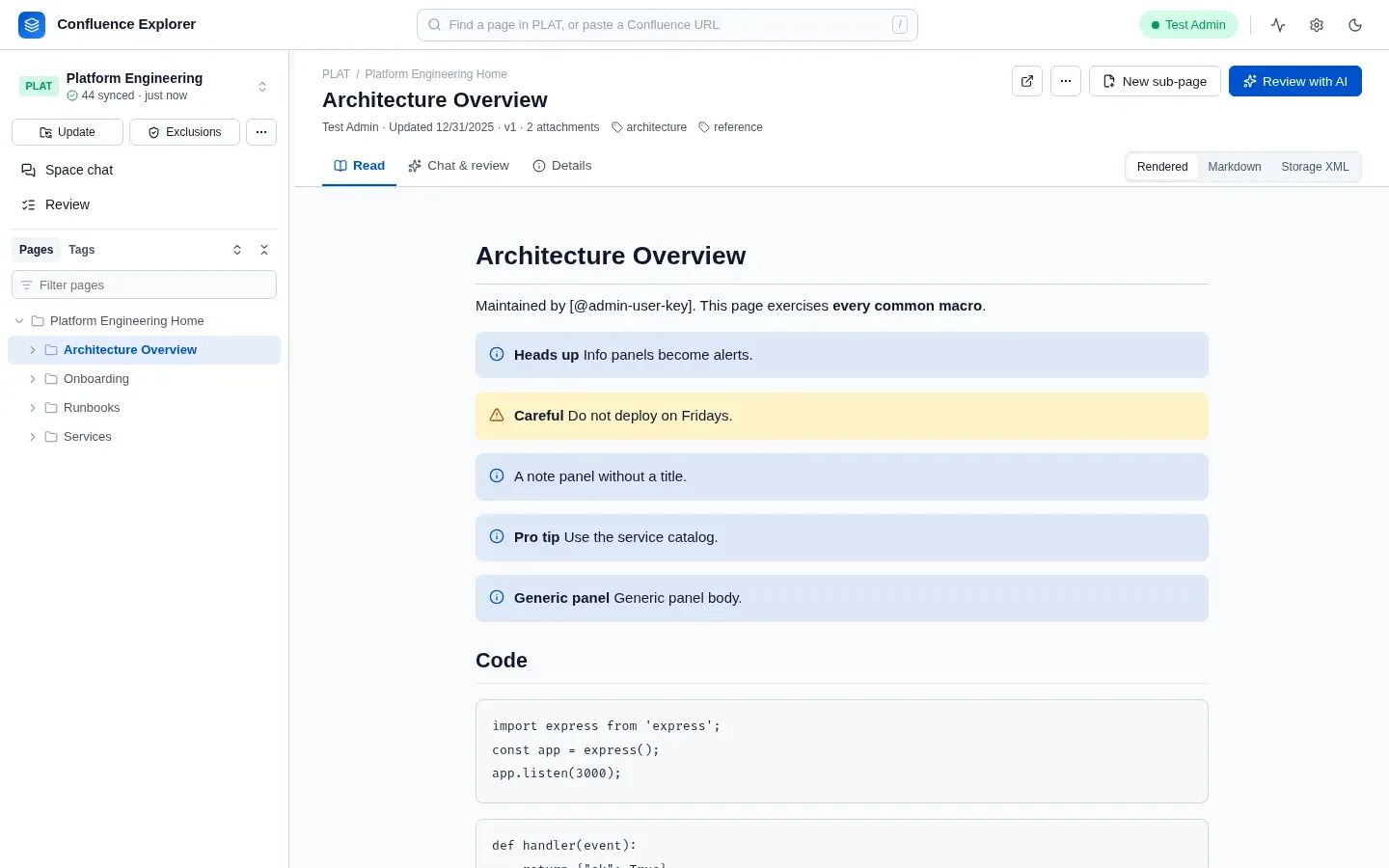
Section titled “Your first few minutes”- Pick a space from the picker at the top of the sidebar. Its pages appear as a tree, folded to its top-level pages; click the arrow beside a page, or Expand all, to open it.
- Open a page. The Read tab shows it rendered, as Markdown, or in Confluence’s own storage format.
- Sync the space with Sync, under the space’s name. The app downloads every page you are allowed to see, so the tree, searches and AI questions work from your own disk.
- Set up an AI under Settings → AI provider, then click Review with AI on any page and click Summary.
Where to go next
Section titled “Where to go next”- Connecting to Confluence: tokens, company certificates, and where the connection is stored.
- Keeping a copy on disk: syncing, the table of contents, the ZIP export, and removing pages.
- Asking an AI: choosing a provider, asking about a page or a whole space, and adding files.
- What leaves your computer: excluded pages and the leak guard.
- Changing pages from a chat: a chat’s review, edits side by side, and pushing to Confluence.
- Writing a new page: checking for existing pages first, then writing with an AI.
- Troubleshooting: the doctor, and the messages you are most likely to see.
- Trying it locally: the app from its source, against a Confluence of its own.