
Keeping a copy on disk
Syncing a space downloads every page you are allowed to see, as Markdown files in folders that follow the page tree, together with each page’s attachments. Once a space is synced, the app reads it from your disk instead of from Confluence, and the AI features that work across many pages use that copy.
Sync a space
Section titled “Sync a space”Choose a space in the sidebar and click Sync, under the space’s name.
The sidebar shows progress as the pages arrive, with a Stop button, and the header shows it too while you browse; if you reload the page, the progress comes back. When the sync finishes, a message says how many pages were downloaded and how many were already current or excluded, and the line under the space’s name changes from Not synced to the number of pages synced and when.
Run it again at any time with Update, which takes the place of Sync. Only pages that changed in Confluence since the last sync are downloaded again, with any page whose attachments were added or replaced there, or are missing here. A page about to be edited is always read from Confluence first, and its copy here is updated if it is older (see Changing pages).
Some things to know about a sync:
- It covers the whole space: every page under the space’s home page, or every page in the space if it has no home page.
- Excluded pages are never downloaded, nor is anything under them. See What leaves your computer.
- It adds and updates; it never deletes. A page that was deleted, renamed or moved in Confluence keeps its old file on your disk until you remove it, as described below.
- Stopping a sync keeps what was already written, but the table of contents is not rebuilt until a sync finishes.
Browse the copy
Section titled “Browse the copy”A synced space behaves the same as a live one, but faster and without asking Confluence for each page. The tree on the left is read from your disk, and the page view shows the copy. To see a page’s latest version, sync the space again.
- Find a page: type part of its title into the search at the top of the window, or press
/to jump to it, and pick the page from the list. Paste a Confluence page address or a page id there instead, and the app finds the page and switches to its space. - Filter pages: type in the box above the tree. A page stays visible if it, or any page under it, matches.
- Read it three ways: the Read tab shows the page Rendered, as Markdown, or as Storage XML, Confluence’s own format, chosen at the right of the tabs. Copy Markdown, in the ⋯ menu at the top of the page, copies the text.
What the Markdown looks like
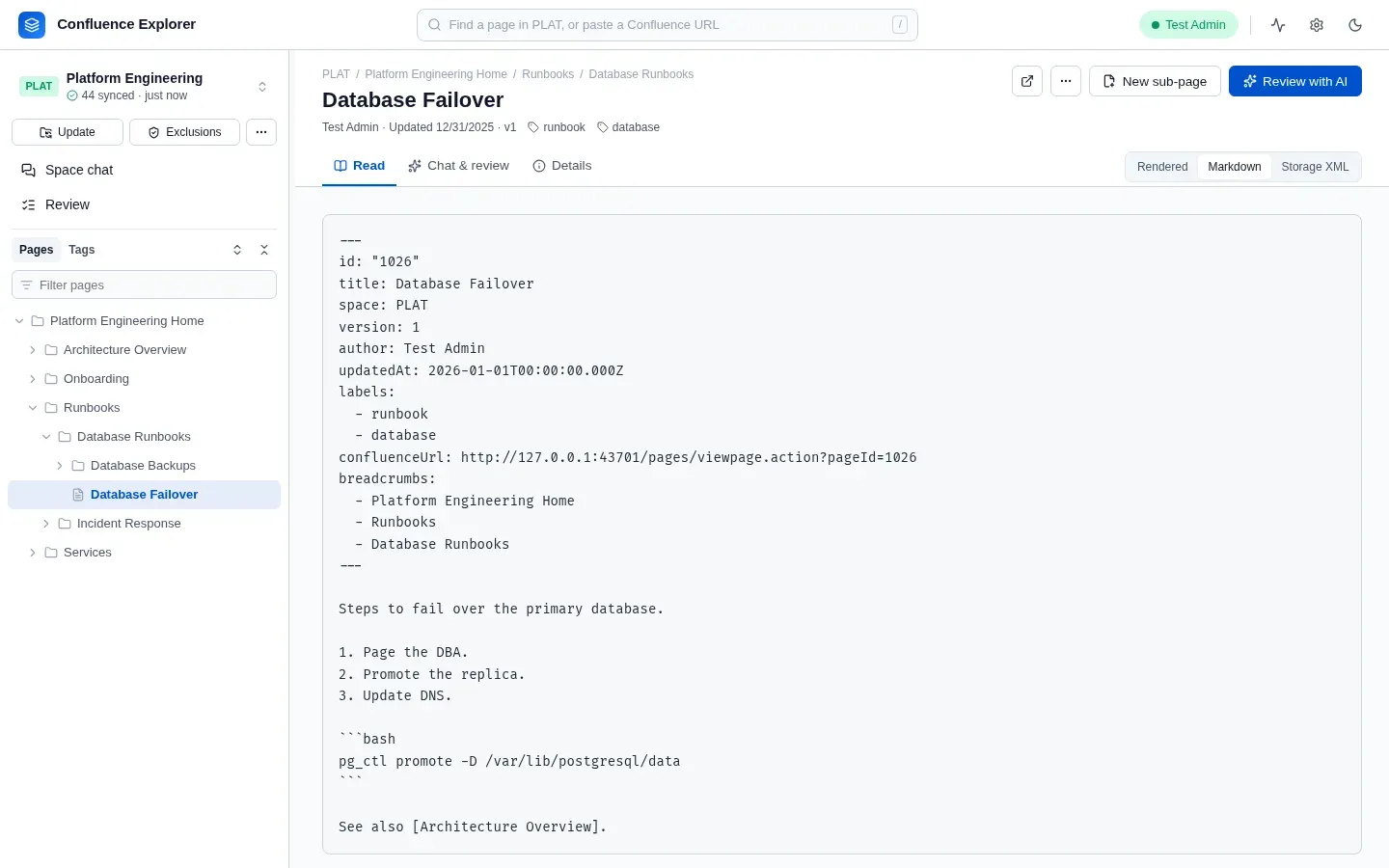
Section titled “What the Markdown looks like”Each page’s Markdown starts with a short block of details between --- lines, called frontmatter:
the page id, title, space, version, author, last update, labels, address and the titles of the pages
above it. The rest is the page itself.
Markdown has no form for some parts of a Confluence page, so the app shows them as text in brackets rather than dropping them:
| In Confluence | In the Markdown |
|---|---|
| A status label | [status: ACCEPTED] |
| An info, note, warning or tip panel | > **warning: Paging policy** and its text |
| Any other macro | > [macro: jira], > [macro: toc] and so on |
| An image | [image: capacity-chart.png] |
| A link to another page | The page’s title, in brackets |
| A mention of a person | [@...], with the person’s user name or key |
| A code block | A fenced code block, with its language |
| A task list | - [x] and - [ ] |
A change to a page keeps these parts as markers instead and writes each one back exactly; see Changing pages from a chat.
The table of contents
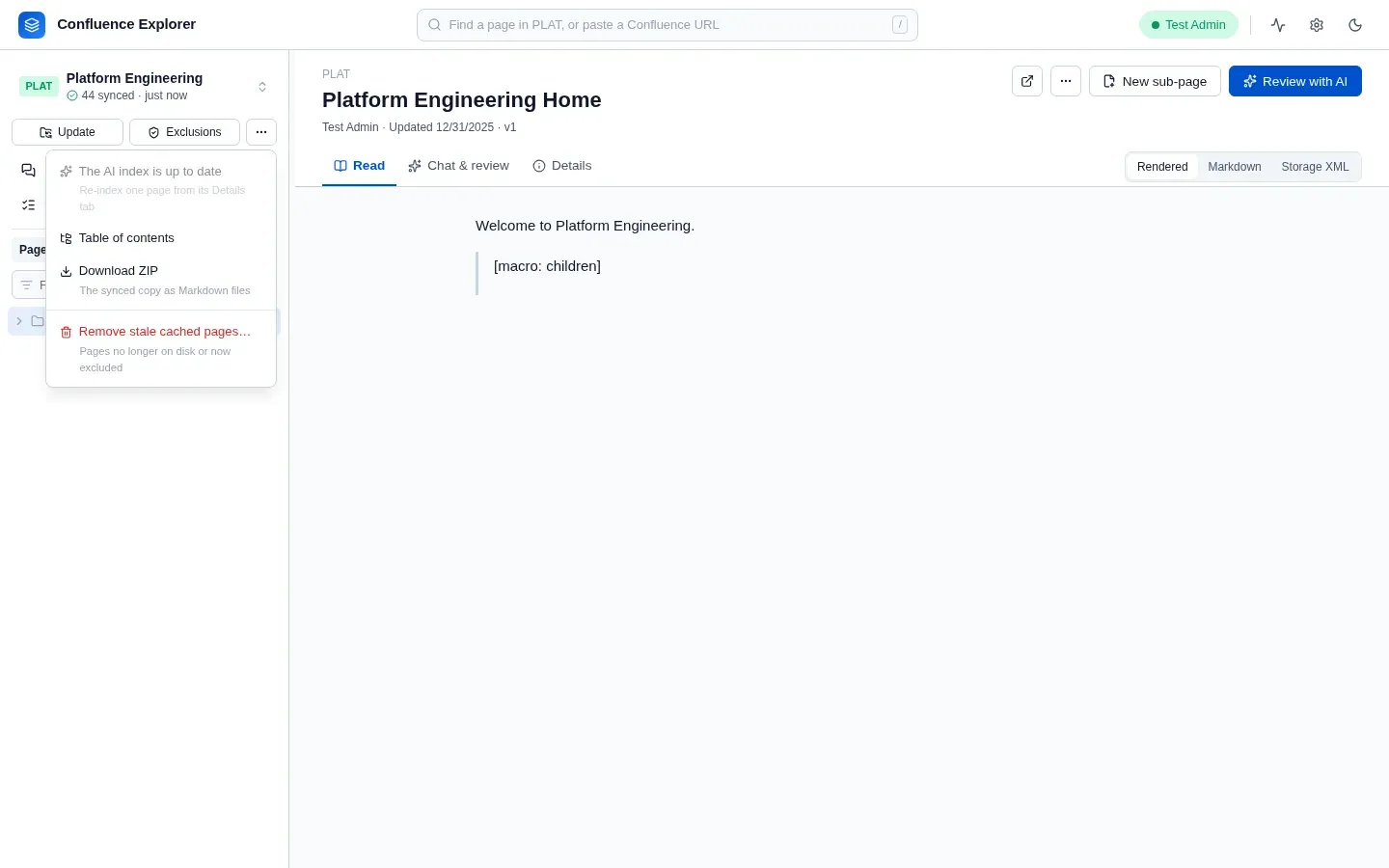
Section titled “The table of contents”Table of contents, in the ⋯ menu beside Exclusions, shows every synced page as a tree, with its AI summary and
topics once those exist. Click a title to open the page. The same table is saved as TOC.md and
toc.json in the space’s folder, so other tools can use it.
Build the AI index in the same menu asks your AI about each synced page, one at a time: what it is for, its topics, the questions it answers, and a line on each section. With a provider that offers embeddings, it embeds each section too (see Asking an AI). It keeps going while you open other pages: the header shows how far it has got, and clicking it takes you back. Starting it again while it runs shows the same run rather than starting a second one. You can pause it and come back later. It only does pages that are not indexed yet; once every page is, the menu says so; to redo one page, use Re-index on its Details tab. A page’s index entry and embeddings are removed when a sync downloads a newer version of it, so they are never out of date, and Update the AI index redoes just those pages.
Download a ZIP
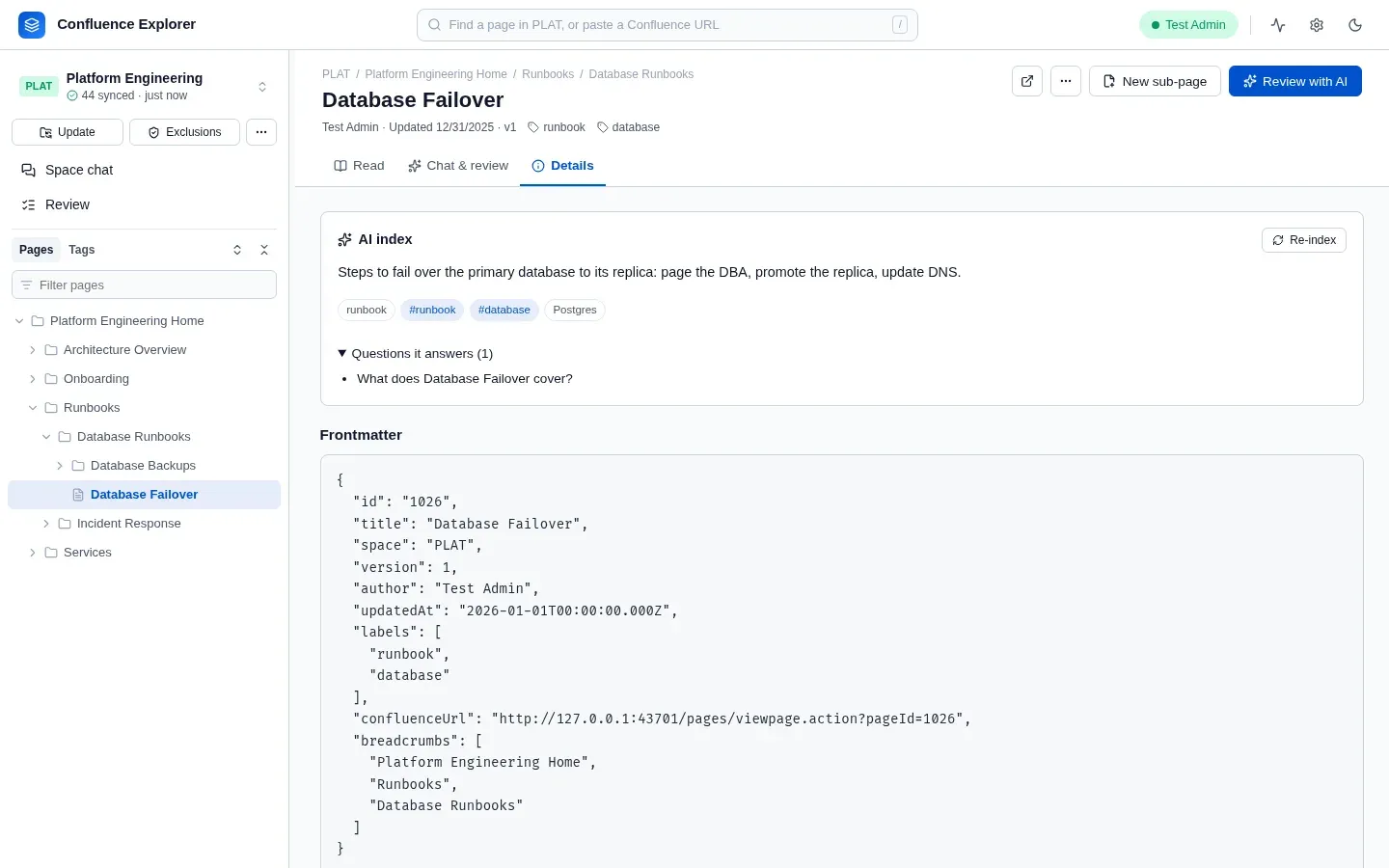
Section titled “Download a ZIP”Download ZIP gives you the whole synced space as one file: the Markdown of every page, their attachments, and the table of contents. Pages excluded by the space’s rules are left out, even if a copy of them is still on your disk.
Remove pages from your computer
Section titled “Remove pages from your computer”Removing a page here deletes only your copy. Nothing changes in Confluence.
- One page: open it, choose ⋯ → Remove from this machine…, and decide whether to remove the pages under it as well. By default the app also adds a rule to the space’s exclusions, so the next sync does not download the page again.
- Stale copies: Remove stale cached pages… in the ⋯ menu removes copies that the space’s rules now exclude, and copies whose Markdown file you deleted yourself. Delete the copy of KEY… removes the whole space in the background, showing each file as it goes, and keeps its rules and chats; you can sync it again at once.
Where the files are
Section titled “Where the files are”Each synced space has its own folder inside the app’s data folder (~/.confluence-explorer unless
you chose another with --data-dir), beside telemetry/, the app’s own logs and traces:
spaces/PLAT/ pages/ one Markdown file per page, in folders that follow the tree pages/.../Title_attachments/ each page's attachments, kept in step with Confluence at each sync pages_cache/ each page as Confluence sent it metadata/ the AI index: summaries, topics, questions vectors/ section embeddings, when a provider makes them TOC.md, toc.json the table of contents catalog.json each page's title, place, labels and AI tags, without its text manifest.json when the space was last synced .confluenceignore the space's exclusion rules .confluenceguard the space's leak guard rulesA page’s tags are its Confluence labels with the topics the AI index gives it. The app keeps them in
catalog.json, and updates it whenever it syncs a page, indexes one, or removes one, so tags and the
page tree open at once without reading every page. A space synced before the catalog existed builds
it the first time its tags are opened, showing its progress; this happens once.
You can open the Markdown files in any editor. If you delete one, Remove stale cached pages… tidies up what the app still remembers about it.
How this is checked
Section titled “How this is checked”test/localCopy.test.ts checks that a sync writes every visible page and no excluded one, downloads
only what changed the second time, serves the tree and pages from disk, and builds the table of
contents and the ZIP. test/converter.test.ts holds the expected Markdown for every page in the test
dataset. test/e2e/localCopy.e2e.ts syncs a real Confluence Data Center space.