

Connecting to Confluence
Confluence Explorer talks to one Confluence at a time, using a personal access token that belongs to your account. The app can only see and change what your account can, so the token decides what the app is allowed to do.
Create a personal access token
Section titled “Create a personal access token”- In Confluence, click your profile picture and choose Settings or Profile, then Personal Access Tokens.
- Click Create token, give it a name you will recognise later, such as “Confluence Explorer”, and choose when it expires.
- Copy the token. Confluence shows it only once.
The Settings dialog repeats these steps under How to create a personal access token in Confluence, in case you need them while connecting.
Connect in Settings
Section titled “Connect in Settings”Open Settings with the gear in the header, or press Ctrl+, (Cmd+, on a Mac). Its sections are listed on the left, Confluence, AI provider and GitLab, each with a green dot once set up.
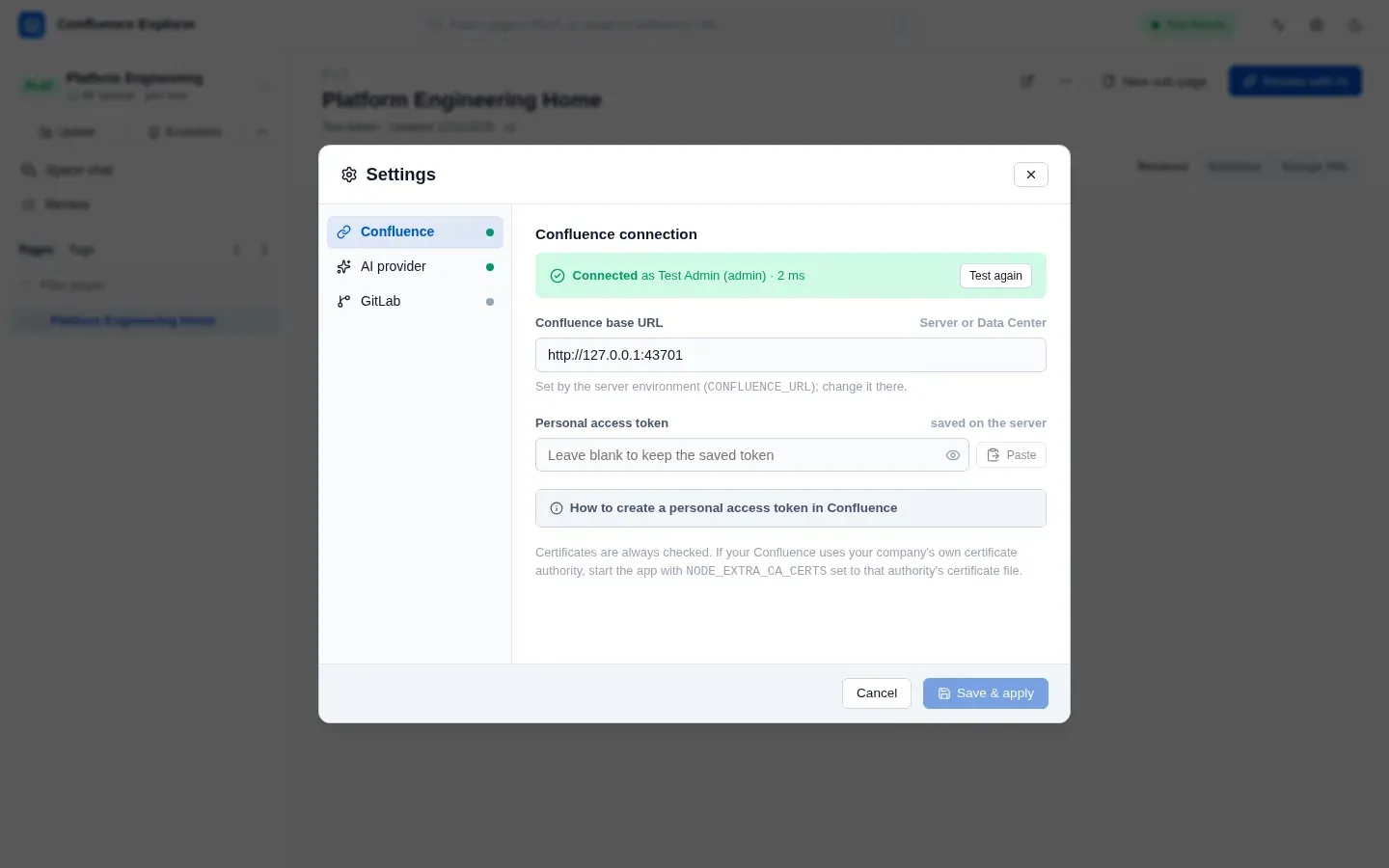
- Confluence base URL is the address you open Confluence at, such as
https://confluence.example.com. It must start withhttps://orhttp://. - Personal access token is the token you copied. The Paste button reads it from your clipboard; if your browser blocks that, paste into the field with Ctrl+V.
- Test connection, in the banner at the top, tries the address and token you typed, without saving them, and says who you are signed in as; a saved connection is tested when Settings opens. Use it before saving, so a typo does not replace a working connection.
- Save & apply saves the connection and reloads the spaces.
To change only the address, type the new one and paste the token again. If you change the address and leave the token field empty, the saved token is not reused for the new address, so it is never sent to a server it was not created for.
Connect with environment variables instead
Section titled “Connect with environment variables instead”You can also give the app its connection when you start it. This suits a shared setup, or a machine where you would rather not type the token into a browser:
CONFLUENCE_URL=https://confluence.example.com \CONFLUENCE_PERSONAL_TOKEN=your-token \npx @simplysf/simply-confluence-explorerWhen CONFLUENCE_URL is set, it is the connection: the Settings dialog shows it but cannot change
it, and says so. The same two variables can also go in a file named .env inside the app’s data
folder (see below), which the app reads each time it starts. A variable set in the real environment
wins over the same one in that file.
A company certificate
Section titled “A company certificate”Confluence Explorer always checks the certificate your Confluence presents, and there is no setting to turn that off. If your Confluence uses a certificate issued by your company’s own certificate authority, Node.js does not know that authority yet, and connecting fails with a message that the certificate could not be verified.
Ask your IT team for the certificate authority’s file (often ending in .pem or .crt), and start
the app with NODE_EXTRA_CA_CERTS pointing at it:
NODE_EXTRA_CA_CERTS=/path/to/company-ca.pem npx @simplysf/simply-confluence-explorerThe variable must be set when the app starts; the .env file in the data folder cannot set it. The
doctor names the file it is using, so you can confirm it took effect.
Where the connection is kept
Section titled “Where the connection is kept”Everything the app saves lives in one folder, ~/.confluence-explorer by default. Start the app with
--data-dir <path>, or set CONFLUENCE_EXPLORER_DATA, to use another folder.
The connection is saved in config/connection.json inside that folder. On macOS and Linux the file
can be read only by your user account; on Windows it is protected by your Windows profile’s
permissions, and the doctor says so. The token is never sent back to the browser: the app tells the
page only whether a token is saved.
GitLab, for writing pages from a repository
Section titled “GitLab, for writing pages from a repository”To let the co-writer of a new page read a repository (see Writing a new page),
open Settings → GitLab, enter your GitLab’s address and a personal access token with
read_api or read_repository, click Test, then Save & apply. The token is saved in
config/gitlab.json like the Confluence token and never sent back to the browser. Only
repositories on that GitLab can be read, and a new address drops the saved token.
Atlassian Cloud
Section titled “Atlassian Cloud”Confluence Explorer works with Confluence Server and Data Center only. Atlassian Cloud signs in
differently and offers a different API, and the app is not built or tested for it. The doctor reports
a Cloud address (one ending in .atlassian.net) as unsupported.
How this is checked
Section titled “How this is checked”test/connection.test.ts and test/security.test.ts check that the token is saved owner-only and
never returned, and that a token is not reused for a new address. test/doctor.test.ts checks the
certificate hint, the Cloud refusal and the Windows note. test/gitlab.test.ts checks the GitLab
token is never returned and only the configured GitLab is read. test/e2e/browse.e2e.ts connects to a real
Confluence Data Center with a personal access token.